
Appearance
Accessibility
Ease Live includes several features that help you build experiences that work well for all users, including those with accessibility needs. These settings are found in your project's Settings → General panel.
Font size
Visually impaired users often increase their browser or system font size to make content more readable. Accessibility scale makes your overlays automatically adapt to this preference by scaling them in proportion to the user's font size setting.
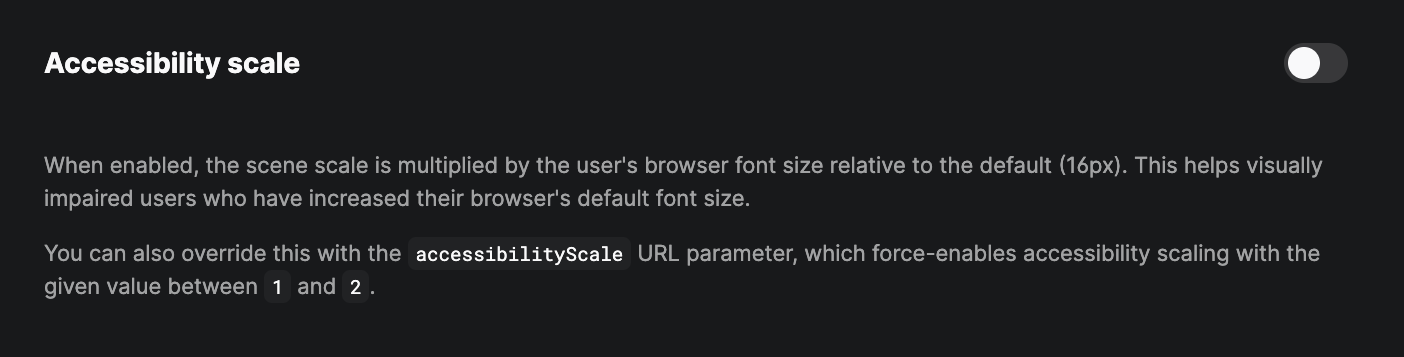
When enabled, Ease Live reads the user's browser font size at load time and uses it to derive a scale multiplier relative to the default 16px. For example, a user with a 20px font size preference gets a 1.25× scale boost (20 ÷ 16 = 1.25). The multiplier is always clamped between 1 and 2.
This multiplier is applied on top of the normal scene scale, so it can intentionally exceed any scaleToDeviceMax you have set — the point is to always honour the user's preference.
iOS Safari
iOS Safari does not expose Dynamic Type settings through the standard browser font size API. Ease Live works around this by probing a hidden element with Apple's system font to read the Dynamic Type preference correctly.
Using the URL parameter
You can force-enable accessibility scaling with an explicit value using the accessibilityScale URL parameter. This bypasses the project setting and always applies the given scale regardless of the user's font size:
https://<studio-url>&accessibilityScale=1.25The value must be between 1 and 2. This is useful for testing or for broadcasters who want a fixed scale for a specific audience.
Reduced motion
Some users have indicated in their OS or browser settings that they prefer reduced motion — for example, people with vestibular disorders who find animations disorienting. Ease Live respects this preference by default, applying the final animation state instantly rather than playing the animation over time.
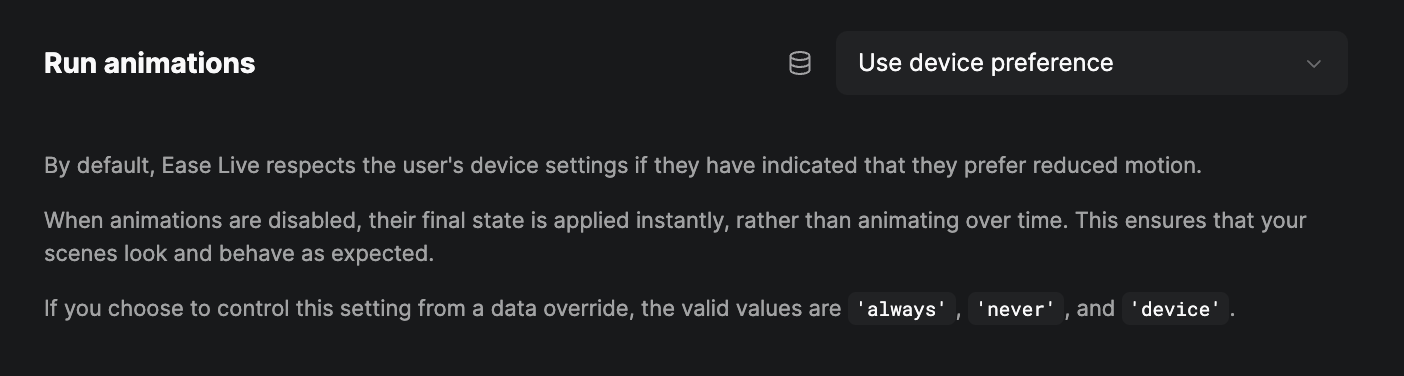
The Run animations setting lets you control this behaviour per project:
| Value | Behaviour |
|---|---|
| Use device preference (default) | Respects the user's OS/browser reduced motion setting |
| Always | Animations always play, regardless of user preference |
| Never | Animations never play; final state is applied instantly |
You can also control this from a data override by binding the animationMode.override property. The valid values are 'always', 'never', and 'device'.
Layout direction
Ease Live supports right-to-left (RTL) rendering for Arabic, Hebrew, and other RTL languages. In RTL mode, directional properties are automatically flipped: horizontal anchors, slide-in animations, stack directions, and similar properties all behave as expected for RTL layouts.
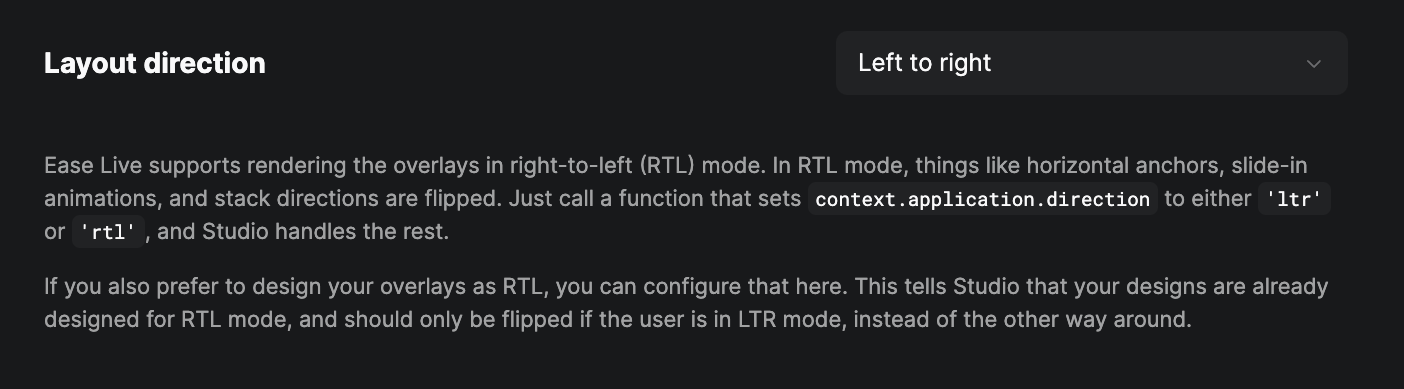
To switch direction at runtime, call a function that sets context.application.direction to either 'ltr' or 'rtl'. Studio then handles the rest.
The Layout direction design setting controls how Studio interprets your designs:
- Left to right (default) — your designs are authored in LTR; they are flipped when the user switches to RTL.
- Right to left — your designs are already authored in RTL; they are flipped when the user switches to LTR.
Set this to match how you have built your scenes, so that the flip logic always produces the correct result at runtime.